How and Why I Customise My Laptop
Move past the default settings of your applications and operating system
We spend a significant part of our lives in front of the screen, but at the same time, we tend to stick to the default settings of applications and the operating system. It's almost like never redecorating anything in your home.
When you look into it, you quickly find a whole world of productivity tooling out there. A better search experience with tools like Raycast, clipboard history, snippets, better calendar apps with shortcuts to jump to meetings, and even some visual customisations, can change how you feel and experience working on your PC.
So, let's go through some of "The Whys" and "The Hows" of customising your laptop.
(If you live by the principle "never spend six minutes doing something by hand when you can spend six hours failing to automate it," then you can jump straight to "The Hows.")
The Whys
Throughout my computer science degree, I avoided learning shortcuts, installing productivity apps, and using plugins and extensions. It just didn't feel worth the time investment. If there was any friction or need to set things up, my immediate instinct of "ugh, it's not going to save me that much time" kicked in.
After all, improving your setup is a tradeoff between spending time now to save more time in the future for the repeated task. The most straightforward math is to check the following:
time saved performing the task in the future > time spent on making the task more efficient
Here is a nice xkcd comic illustrating the calculation:
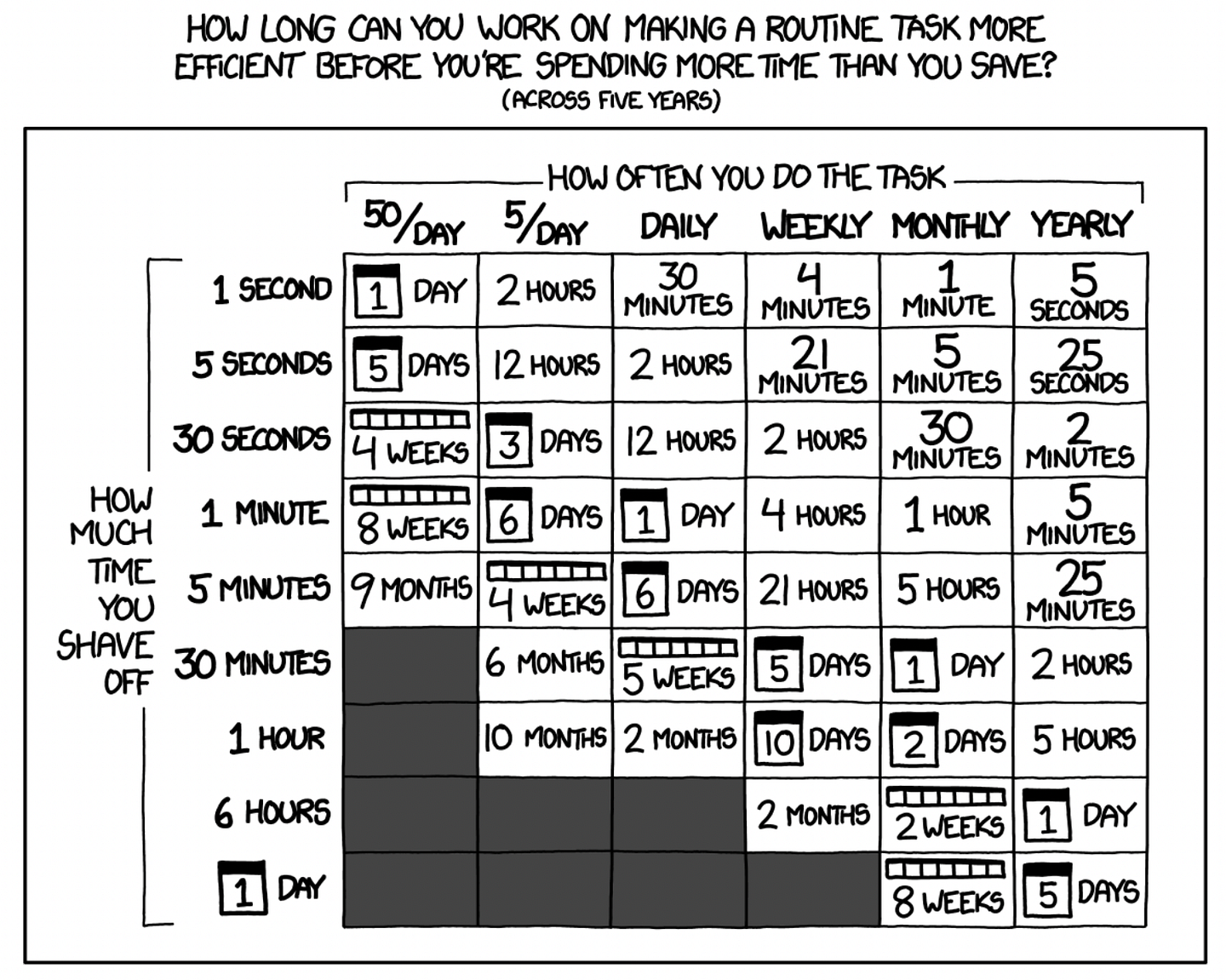
With customisations, there are many benefits besides just saving time. It is especially true for actions that are performed very often and would only shave off a few seconds (the top-left corner in the comic).
-
Remove friction and protect the flow state. Not getting annoyed at your laptop is a benefit in itself, and in terms of productivity, it can also help you protect the flow state when you are working. If you experience friction when using your laptop, someone is probably working on removing it. For example, if you have to do a lot of copy-pasting, clipboard history can be useful. Hate ads? Adblockers. I even have a small extension that opens a new tab near the current one instead of at the end on Chrome, which I found annoying when going left/right between tabs.
-
Getting more comfortable working with others. As a software engineer, I pair program with other engineers. Taking turns coding together and giving each other feedback. Pair programming is highly beneficial, but for many people, it's also incredibly awkward to have someone stare at your screen while you work. Getting more comfortable with your setup can help alleviate that pain, and you might even have a few extra tips to share. It will just be more entertaining for both parties involved to work together.
-
You can't compare seconds to seconds. Not all time is equal. Sometimes you need to finish that project by tomorrow, and working faster is critical. We all have experienced days and hours when we are highly productive or need to finish something. I spend time on customisations closer to the evening when feeling less interested or tired to be more efficient when it counts.
Finally, you could really save time. Again, think about how many hours a day you spend on your computer. Settings are, as a rule, now synced after you change your devices, so you will be setting things up for years to come.
OK, if you are convinced, let's go over some of "The Hows."
The Hows
I will list some of the tools I find particularly helpful, but I don't want to focus too much on the specific apps. Tools change and can differ depending on the operating system, so I will list my favourite functionalities and tricks afterward, linking the functionality to the tools.
Some of my favourite tools I use on my MacBook are the following:
-
Raycast — a great alternative to the default search bar. It has a whole set of extensions and functionality to quickly search docs, bookmarks, Notion and Figma plugins, calculator, snippets, etc.
-
Franz — gathers all of your messaging services in one place. I connect all my messengers and email here to have a "communication" mode where I'm replying/sending messages and then mute Franz to have a "work" mode to get stuff done.
-
Cron — a Calendar app designed for productivity and quick scheduling. What I like the most is jumping straight to meetings from anywhere with a shortcut.
-
Karabiner-elements — helps set up extra customisable shortcuts on macOS.
-
Vimium — a fantastic extension for Chrome to browse the internet without letting your hands leave the keyboard. Use
j+kto go up and down. Click on links by pressingf + followed by a letter combination for the link. Generally, "don't let your hands leave the keyboard" is a good rule to keep in mind to get comfortable with shortcuts, and this extension makes it very easy while searching the web:
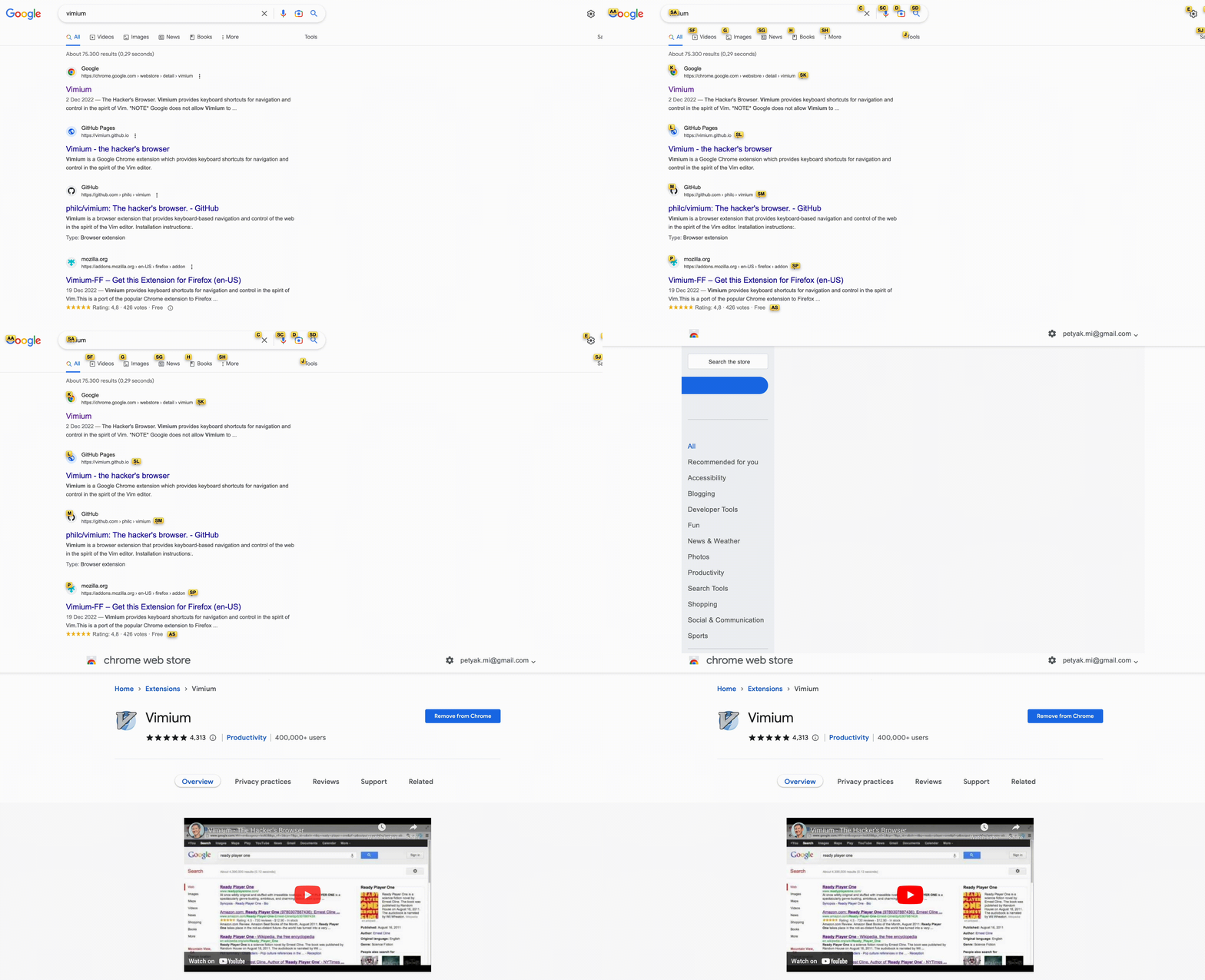 Vimium in action. Browse without letting your hands leave the keyboard.
Based on these tools, here are some of the best functionality and tricks that I love and honestly sometimes think should be the default for operating systems:
- Clipboard history Saving what you copy and paste and making what you copied searchable for a short time is extremely convenient. Especially when you want to copy several items, doing it in bulk can help. Here is an example with Raycast:
 Clipboard history with Raycast
- Snippets Also provided by Raycast, you can create a named reusable snippet of text. I use it for things that I often need to send to others, like social media accounts, phone number, or just some generic responses. You only need to remember what you called the thing in your head, not the actual text:
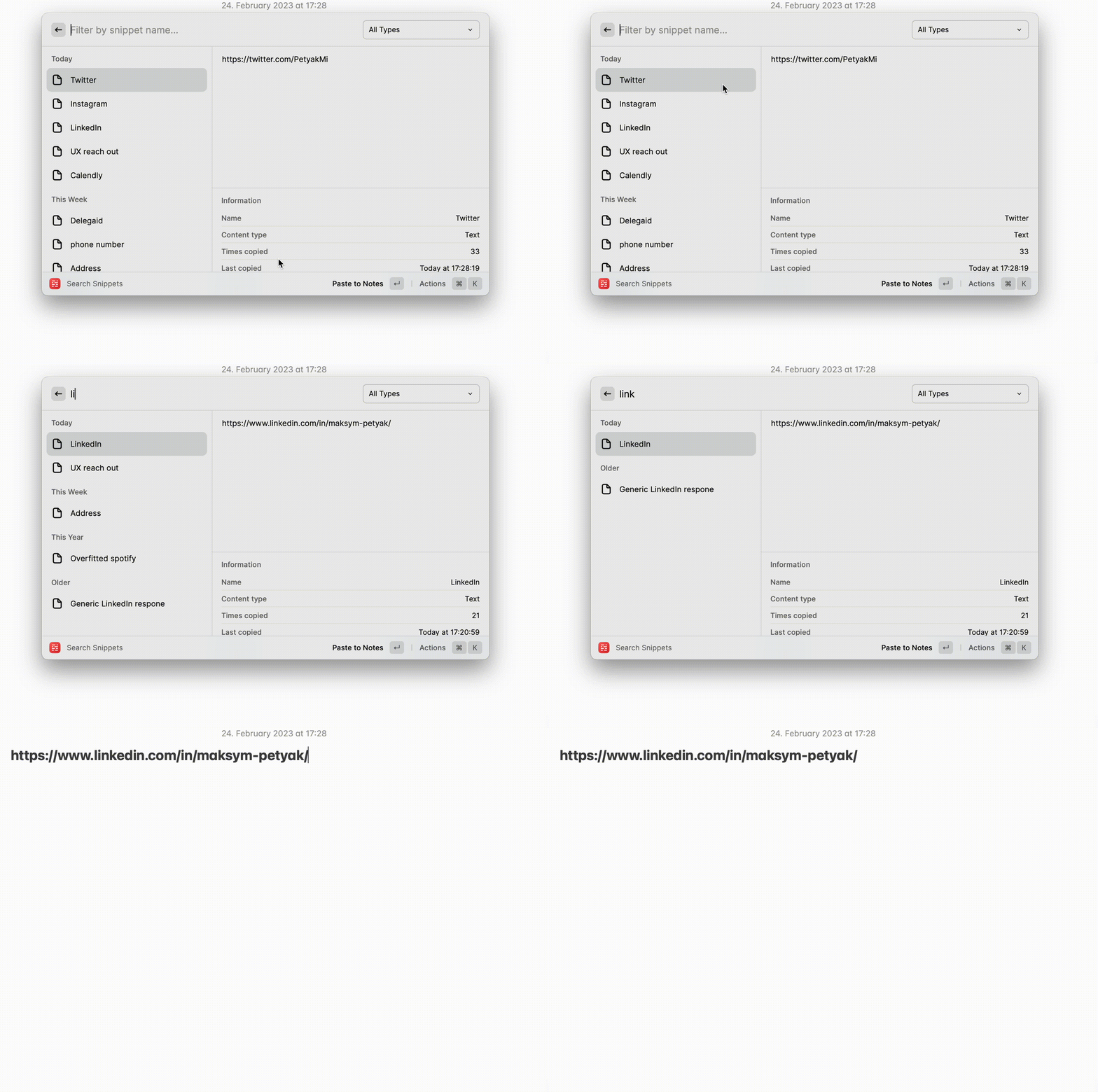 Snippets with Raycast
- Bookmark search Another cool trick with Raycast is jumping straight to your bookmarks. Especially since you name the browser bookmarks yourself, it is easy to go to the correct webpage since you need to remember how you called it in your head and not the URL. Here are, e.g., bookmarks for my most recent project, which I synced with Raycast:
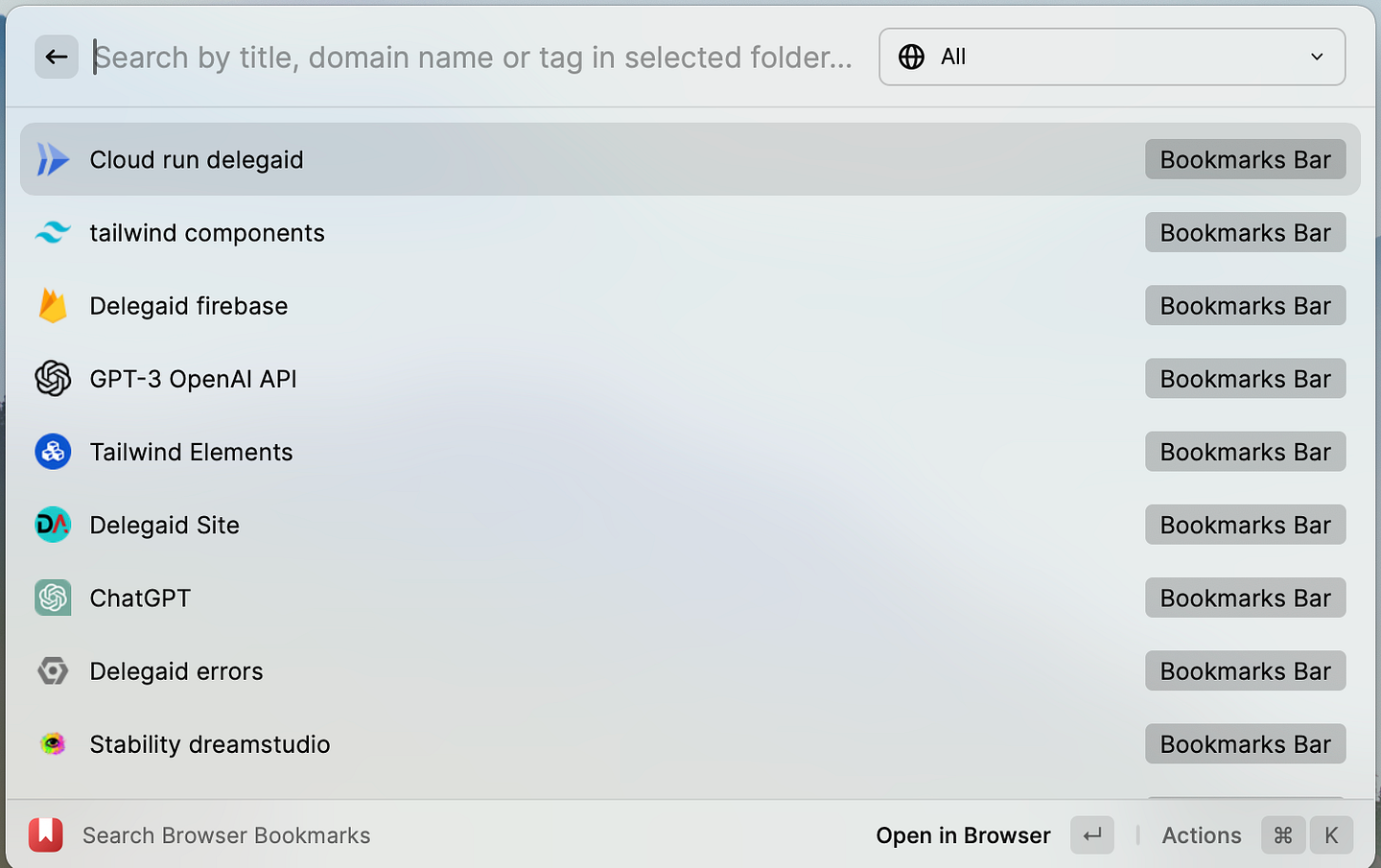 Sync and search through bookmarks
-
Jump to meetings With so many online meetings and remote work, jumping to meetings with a single shortcut from anywhere is very convenient. Cron provides this, but before, I also used MeetingBar.
-
Remap the Caps Lock key Look at the Caps Lock key. Seriously, look at it. It's keyboard prime real estate with the most useless functionality. You are not taking part in that many online shouting matches. It's not hard to remap it to be literally anything else. I have used the Karabiner-Elements extension to remap it as a special key combination ("Command + Control + Option + Shift") to use with other shortcuts. But if you use VIM, remapping it to the Escape character is also super convenient.
-
Password manager Having a good password manager helps fill out forms and is infinitely better than reusing the same password everywhere. I personally use 1Password, but there are many options out there.
-
VIM (quite specific to programmers and very subjective) VIM captures a critical programming practice: you spend more time reading/editing (and copy-pasting) code than writing it. You don't have to become a hard-code VIM person who only codes using the terminal since there are extensions for VSCode and IntelliJ.
-
Terminal extensions There is a whole world of terminal extensions out there. The most time-saving for me was better history and autojump. I won't go into it here since many good articles are online.
-
Nyan Progress Bar A nicer progress bar in PyCharm. It's the little things that spark joy.
 Nyan cat progress bar on PyCharm
Conclusion
All of this is a matter of personal taste. I don't want to advocate for any specific tooling or best practice. However, I have found it an extremely worthwhile time investment to spend a few evenings learning shortcuts and adding productivity tools. I wish I had explored the space sooner.
There is a whole world of productivity tooling. Be mindful of the friction you experience while using your PC, and you will most likely find some software engineers experienced it as well and found how to remove it.
I also bet that this article will age poorly. There will be even better tooling in the coming years, especially with AI productivity apps around the corner.
In the meantime, make your laptop a space you can enjoy.